This post continues from Part 14.
Every team has its own visual conventions — colors, shapes, notations.
bausteinsicht generate-template generates a draw.io template file containing all element types from the specification with consistent styles.
What is a draw.io Template?
A template file is a draw.io file with predefined shapes for each element type. Instead of manually styling elements in the diagram, you simply drag the matching shape from the template panel.
generate-template derives the shapes automatically from specification.elements in architecture.jsonc — for each kind, a styled shape is generated.
bausteinsicht generate-template
bausteinsicht generate-templateCreates architecture-template.drawio with shapes for each element type.
Style Presets
# Default preset (blue shapes, white labels)
bausteinsicht generate-template --style default

# C4 notation (colors per C4 standard: blue/grey/green)
bausteinsicht generate-template --style c4

# Minimalist (outlines only, no fill color)
bausteinsicht generate-template --style minimal

# Dark mode (dark backgrounds, light text)
bausteinsicht generate-template --style dark
Choosing the Output File
bausteinsicht generate-template --output docs/diagrams/team-template.drawioUsing the Template in draw.io
Run
generate-template→architecture-template.drawiois createdIn draw.io: Extras → Edit Templates → import the template file
Your custom element shapes appear in the left panel
Each shape already has the correct name and style — when dragged into the diagram, the element is immediately annotated with the correct kind value that bausteinsicht sync recognizes.
Template from Your Own Specification
The template always reflects the current specification.elements:
{
  "specification": {
    "elements": {
      "frontend":   { "notation": "Browser",    "description": "Web Frontend" },
      "service":    { "notation": "Hexagon",     "description": "Backend Service", "container": true },
      "database":   { "notation": "Cylinder",    "description": "Persistence" },
      "queue":      { "notation": "Parallelogram","description": "Message Queue" },
      "external":   { "notation": "Cloud",       "description": "External System" }
    }
  }
}
generate-template creates a shape for each of these types in the selected style.
New element types → regenerate the template → immediately available in the panel.
Committing the Template to the Repository
git add architecture-template.drawio
git commit -m "update draw.io template for current element types"
This ensures the entire team always has the current template — no manual distribution of style files.
Regenerate the template whenever new kind values are added to the specification. A quick generate-template && git add && git commit is all it takes. |
Example Model
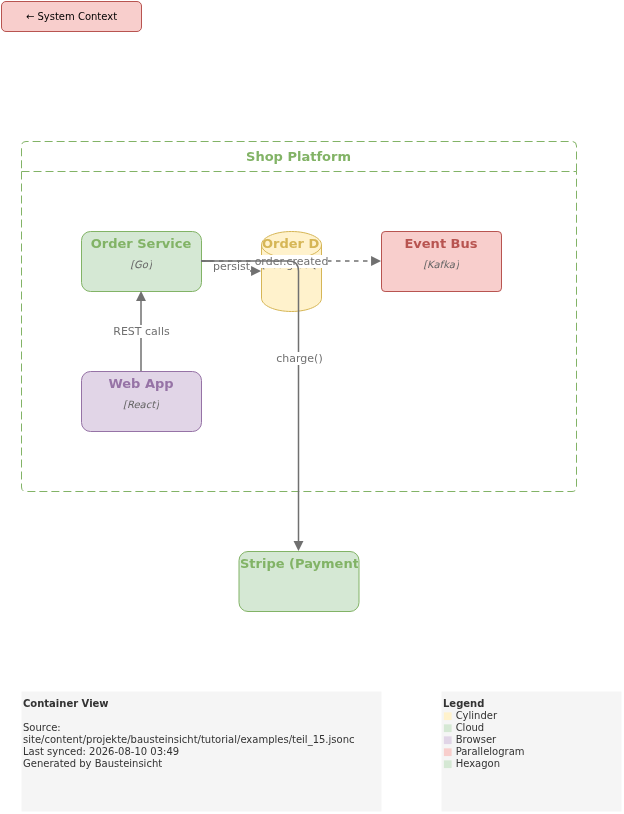
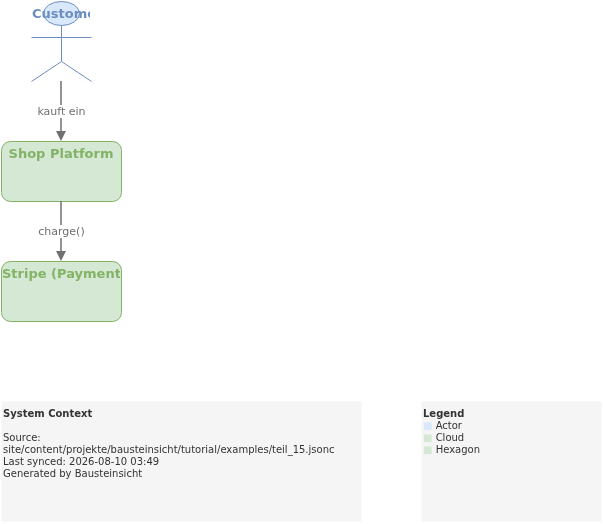
The example for this part (custom element types: Browser, Hexagon, Cylinder, Parallelogram, Cloud) is available at teil_15.jsonc.
Here is the result in draw.io (bausteinsicht sync):
You can find the draw.io file here: teil_15.drawio
Generated PNG files via bausteinsicht export --image-format png:
Generated PlantUML diagrams via bausteinsicht export-diagram:
What Comes Next
Part 16: Workspace — Combining multiple architecture models in one workspace
Part 17: Sequence Diagrams — Exporting dynamic views as PlantUML and Mermaid
Official documentation: User Manual · Tutorial on doctoolchain.org