This post continues from the fourth part. In the previous parts, each example model had one or two views. Here the focus is on how Bausteinsicht generates C4-like multi-level views from a single model.
Views as Lenses on the Model
The model in Bausteinsicht describes the complete system — all elements, all relationships, all hierarchy levels. A view is a lens that cuts out what is relevant in a specific context.
This means: the same elements can appear in multiple views.
The model section in architecture.jsonc remains a single source of truth — views only determine the representation.
The C4 Pattern with Bausteinsicht
The C4 model (Context → Container → Component → Code) maps directly onto Bausteinsicht views:
{
  "specification": {
    "elements": {
      "actor":     { "notation": "Actor" },
      "system":    { "notation": "Software System", "container": true },
      "container": { "notation": "Container",        "container": true },
      "component": { "notation": "Component",        "container": true },
      "database":  { "notation": "Database" }
    }
  },

  "model": {
    "customer": { "kind": "actor",   "title": "Customer" },
    "admin":    { "kind": "actor",   "title": "Admin" },
    "shop": {
      "kind": "system", "title": "Online Shop",
      "children": {
        "frontend": { "kind": "container", "title": "Web Frontend",  "technology": "React" },
        "api": {
          "kind": "container", "title": "REST API", "technology": "Go",
          "children": {
            "orderhandler":   { "kind": "component", "title": "Order Handler" },
            "producthandler": { "kind": "component", "title": "Product Handler" },
            "authhandler":    { "kind": "component", "title": "Auth Handler" }
          }
        },
        "db":  { "kind": "database",   "title": "PostgreSQL",   "technology": "PostgreSQL" },
        "cache": { "kind": "database", "title": "Redis Cache",  "technology": "Redis" }
      }
    },
    "payment": { "kind": "system", "title": "Payment Provider (external)" }
  },

  "relationships": [
    { "from": "customer",        "to": "shop",              "label": "shops",           "kind": "uses" },
    { "from": "admin",           "to": "shop",              "label": "manages",         "kind": "uses" },
    { "from": "shop.frontend",   "to": "shop.api",          "label": "REST calls",      "kind": "uses" },
    { "from": "shop.api",        "to": "shop.db",           "label": "reads/writes",    "kind": "uses" },
    { "from": "shop.api",        "to": "shop.cache",        "label": "cache lookup",    "kind": "reads" },
    { "from": "shop.api",        "to": "payment",           "label": "charge()",        "kind": "uses" },
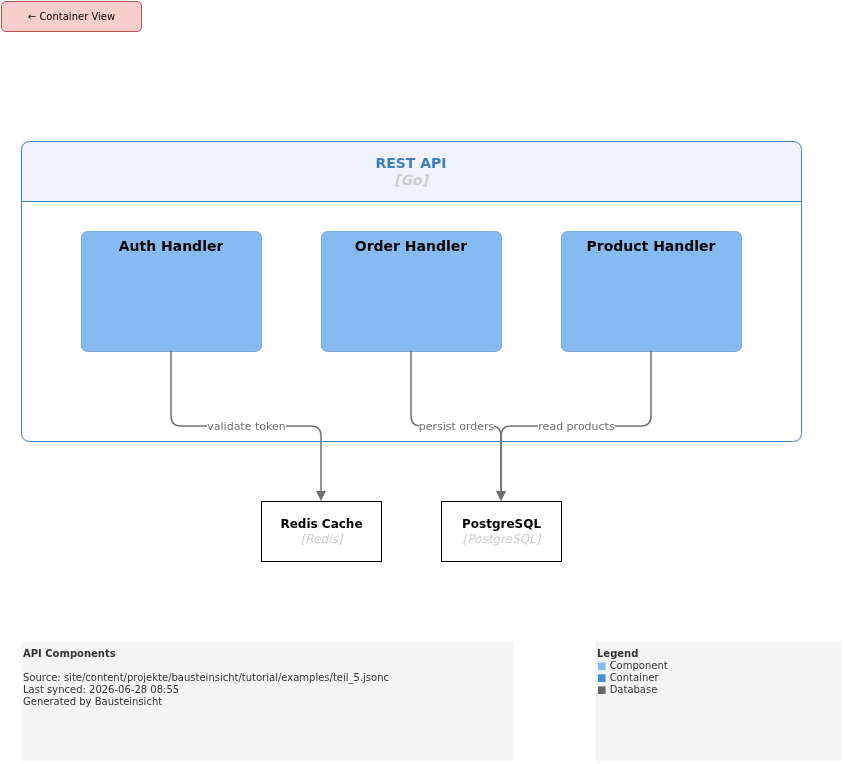
    { "from": "shop.api.orderhandler",   "to": "shop.db",   "label": "persist orders",  "kind": "uses" },
    { "from": "shop.api.producthandler", "to": "shop.db",   "label": "read products",   "kind": "reads" },
    { "from": "shop.api.authhandler",    "to": "shop.cache","label": "validate token",  "kind": "reads" }
  ],

  "views": {
    "context": {
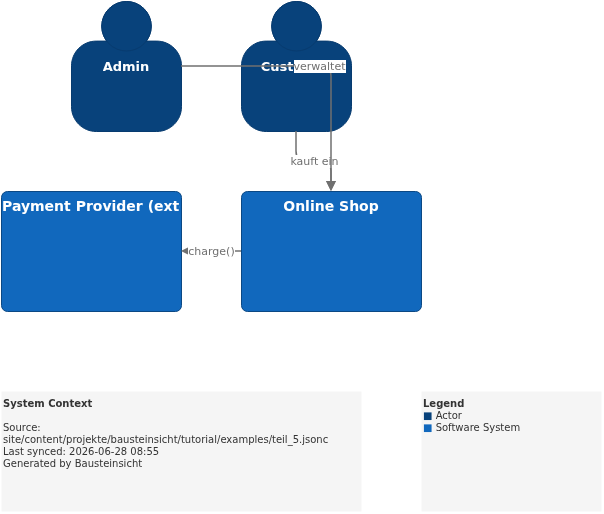
      "title":   "System Context",
      "include": ["customer", "admin", "shop", "payment"]
    },
    "containers": {
      "title":   "Container View",
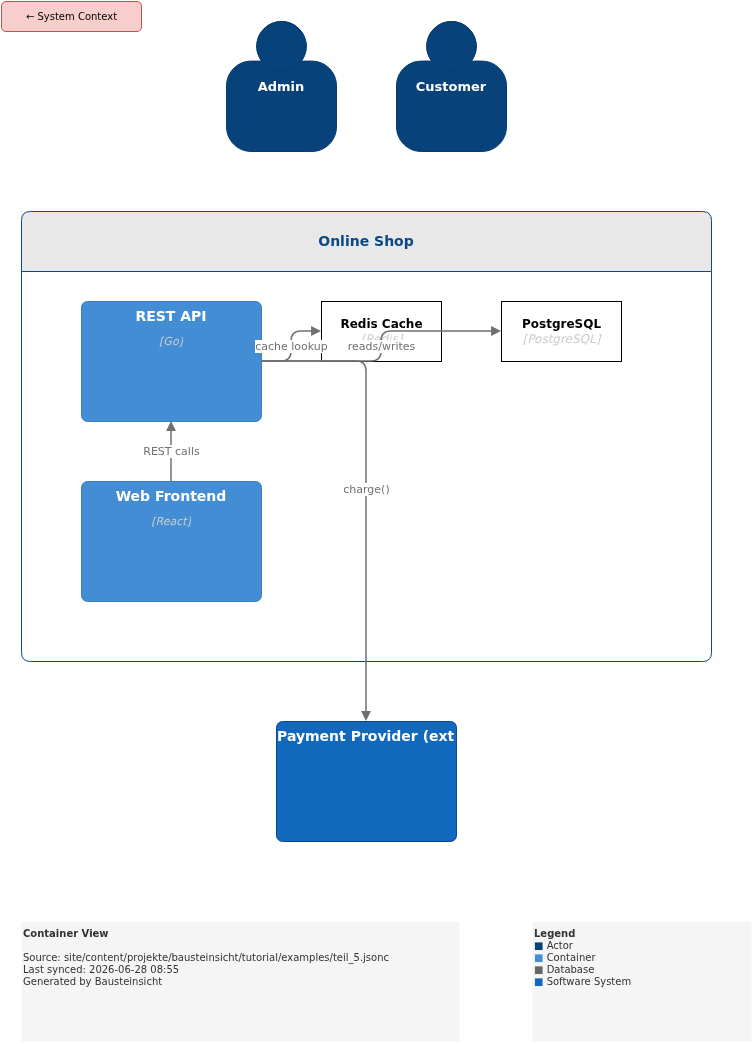
      "scope":   "shop",
      "include": ["customer", "admin", "shop.*", "payment"]
    },
    "api-components": {
      "title":   "API Components",
      "scope":   "shop.api",
      "include": ["shop.api.*", "shop.db", "shop.cache"]
    }
  }
}
This produces three tabs in architecture.drawio: System Context, Container View, API Components.
scope: The Bounding Box
The scope field in a view is the key to structured diagrams.
When a view defines a scope, the scope element is rendered as a bounding box (swimlane / container frame).
All other elements of the view appear either inside this box (if they are children of the scope element) or outside (external actors and systems).
Example: Container View with scope = "shop"
┌─────────────────────────────────────────────────────┐
│  Online Shop                                        │
│  ┌──────────────┐  ┌──────────────┐  ┌──────────┐  │
│  │ Web Frontend │→ │   REST API   │→ │PostgreSQL│  │
│  │    React     │  │      Go      │  │          │  │
│  └──────────────┘  └──────────────┘  └──────────┘  │
│                           ↓                         │
│                    ┌──────────────┐                 │
│                    │  Redis Cache │                 │
│                    └──────────────┘                 │
└─────────────────────────────────────────────────────┘
         ↑ customer, admin (outside the box)
                              ↗ payment (outside)
The bounding box visualizes the system boundary at a glance.
include: Which Elements Appear?
include accepts exact IDs and wildcards:
| Pattern | Meaning |
|---|---|
| Exactly the element |
| All direct children of |
| All children and grandchildren of |
| All components inside |
filter-tags and exclude-tags
Views can also be filtered by tags:
"views": {
  "external-systems": {
    "title":       "External Systems",
    "filter-tags": ["external"],
    "include":     ["customer", "shop", "payment"]
  },
  "active-only": {
    "title":        "Active Components",
    "include":      ["shop.**"],
    "exclude-tags": ["deprecated", "archived"]
  }
}
Drill-Down Links: Navigation Between Views
When an element is used as the scope of a view, Bausteinsicht automatically sets a drill-down link on that element in all other views.
In the Context View, shop is a normal rectangle.
But since shop is the scope of the Container View, the rectangle in the Context View gets a clickable link — one click opens the Container View directly.
The same applies to shop.api as the scope of the API Components view: a click on the API box in the Container View opens the Components view.
This creates a navigable zoom hierarchy:
System Context → [click "Online Shop"] → Container View → [click "REST API"] → API ComponentsNo manual link setting — Bausteinsicht derives this entirely from the scope configuration.
Back Navigation: Return to the Parent View
Views with scope automatically receive a back button in the upper left corner of the diagram.
The button navigates to the parent view — the view from which you navigated here via drill-down.
This makes navigation bidirectional: zoom in and out without manually switching tabs.
Practical Example: Generating Three Views
With the model from the section above:
bausteinsicht syncOutput:
Forward (model → draw.io): 12 added, 0 updated, 0 deleted
Open architecture.drawio — three tabs:
System Context: Customer, Admin, Online Shop (a rectangle with a drill-down link), Payment Provider
Container View: Scope box "Online Shop" with Frontend, REST API, PostgreSQL, Redis Cache inside; Customer, Admin, and Payment outside
API Components: Scope box "REST API" with the three handlers inside; PostgreSQL and Redis Cache outside
The three views share the same model.
A relationship in the model changes — one sync updates all three tabs at once.
Invisible Elements: A Useful Warning
If an element exists in the model but does not appear in any view, bausteinsicht sync outputs a warning:
WARNING: Element "shop.api.orderhandler" exists in the model but is not visible in any view
         — add it to a view's include list
This is not an error — the element stays in the model and can be added to a view at any time. The warning prevents elements from "disappearing" from the model without being noticed.
bausteinsicht status gives an overview of all elements and whether they are visible in a view. |
Example Model
The example for this part is stored as a runnable JSONC file at teil_5.jsonc with all three views (context, containers, api-components).
This is what the result looks like in draw.io (bausteinsicht sync):
The draw.io file for this can be found here: teil_5.drawio
Generated PNG files via bausteinsicht export --image-format png:
Generated PlantUML diagrams via bausteinsicht export-diagram — here the Container View:
What Comes Next
Part 6: Export Features — Mermaid, Structurizr DSL, PNG, and more
Part 7: Snapshots & Changelog — versioning architecture over time
Official documentation: User Manual · Tutorial on doctoolchain.org