This post continues from the twenty-fourth part. In most projects there is already architecture documentation — as a draw.io file in the wiki, as PlantUML in the repository, or as a Structurizr DSL. Migration does not mean throwing everything away. It means finding the right starting point.
Understanding the Starting Point
Before migrating, an honest inventory is worthwhile:
| Tool | What Is There | Effort |
|---|---|---|
Native draw.io (no model behind it) | Only diagrams, no data model — elements exist only as shapes | High: model must be built from scratch |
PlantUML C4 | Structured text model — types, elements, relationships are explicit | Medium: import script or manual transfer possible |
Structurizr DSL | Complete model with elements, relationships, views | Medium: structurally similar to Bausteinsicht JSONC |
Confluence diagrams / PowerPoint | Only images, no machine-readable model | Very high: recreation recommended |
Step 1: bausteinsicht init as a Starting Point
Regardless of the source tool, always start with:
mkdir architecture && cd architecture
bausteinsicht init
init creates an example model with the correct base structure — specification, model, views — and an empty architecture.drawio. This gives you the right foundation without starting from zero.
Then: delete the generated example model (but keep specification.elements and specification.relationships as a template) and build your own model.
Migrating from draw.io
Draw.io without a model behind it is the most common scenario. The approach: use the existing diagram as a visual reference and derive the JSONC model from it.
Step 1: Open the existing draw.io file and identify all present element types and relationship types.
Step 2: Transfer these types into specification:
{
  "specification": {
    "elements": {
      "system":     { "notation": "Software System", "container": true },
      "service":    { "notation": "Service" },
      "database":   { "notation": "Database" },
      "frontend":   { "notation": "Frontend" },
      "external":   { "notation": "External System" }
    },
    "relationships": {
      "uses":       { "notation": "uses" },
      "stores":     { "notation": "stores data in" },
      "calls":      { "notation": "calls" }
    }
  }
}
Step 3: Transfer elements and relationships from the diagram into model:
{
  "model": {
    "shop": {
      "kind": "system", "title": "Online Shop",
      "children": {
        "shop-api":      { "kind": "service",   "title": "Shop API",   "technology": "Go" },
        "shop-frontend": { "kind": "frontend",  "title": "Frontend",   "technology": "React" },
        "shop-db":       { "kind": "database",  "title": "Database",   "technology": "PostgreSQL" }
      }
    },
    "payment": { "kind": "external", "title": "Stripe" }
  }
}
Step 4: Define views that roughly correspond to the existing diagram pages.
Step 5: bausteinsicht sync — Bausteinsicht creates draw.io shapes for all elements.
Then manually transfer positions from the original diagram. This is manual work, but only needs to be done once.
| Do not try to reconstruct the original layout pixel-perfectly. Reapplying auto-layout (→ Part 14) afterwards is often the faster path. |
Migrating from PlantUML C4
PlantUML C4 already has a structured model. The transfer is mechanical:
Becomes:
{
  "specification": {
    "elements": {
      "person":   { "notation": "Person" },
      "system":   { "notation": "Software System", "container": true },
      "external": { "notation": "External System" }
    },
    "relationships": {
      "uses": { "notation": "uses" }
    }
  },
  "model": {
    "user":    { "kind": "person",   "title": "User" },
    "shop":    { "kind": "system",   "title": "Online Shop" },
    "payment": { "kind": "external", "title": "Stripe" }
  }
}
For larger models a small conversion script (Python, awk) is worthwhile — one that parses the System(…) and Rel(…) calls and outputs JSONC fragments.
Migrating from Structurizr DSL
Structurizr DSL is structurally the closest to Bausteinsicht JSONC. The concepts map directly:
| Structurizr DSL | Bausteinsicht JSONC |
|---|---|
|
|
|
|
|
|
|
|
|
|
The main delta: Structurizr supports implicit elements in views (include *), while Bausteinsicht works with explicit IDs or tags.
View-by-View Strategy Instead of Big Bang
The most common mistake in migration: trying to transfer everything at once.
Better:
Migrate one view — the most important system context view
bausteinsicht syncandvalidate— verify the model is consistentWork in parallel — maintain the Bausteinsicht model and the old tool side by side until the new one is stable
Migrate the next view — incrementally, by priority
This takes more time across the full migration, but minimizes risk: at every point in time there is working documentation.
Pitfalls
Relationship lifting: Bausteinsicht automatically promotes relationships to the next visible parent element (→ Part 3). PlantUML and draw.io do not have this — relationships that were explicitly listed in the original tool may appear aggregated in an abstract view in Bausteinsicht. This is not a bug but a feature — but you need to be aware of it during review.
Missing type definitions: When the source tool does not enforce types (draw.io), the specification can quickly become incomplete. validate helps find all used but undeclared types.
IDs are stable, titles are not: In Bausteinsicht the element ID is the stable key. Titles can be changed. In migrations from tools without IDs (draw.io), IDs must be assigned deliberately — and then kept consistent.
Example Model
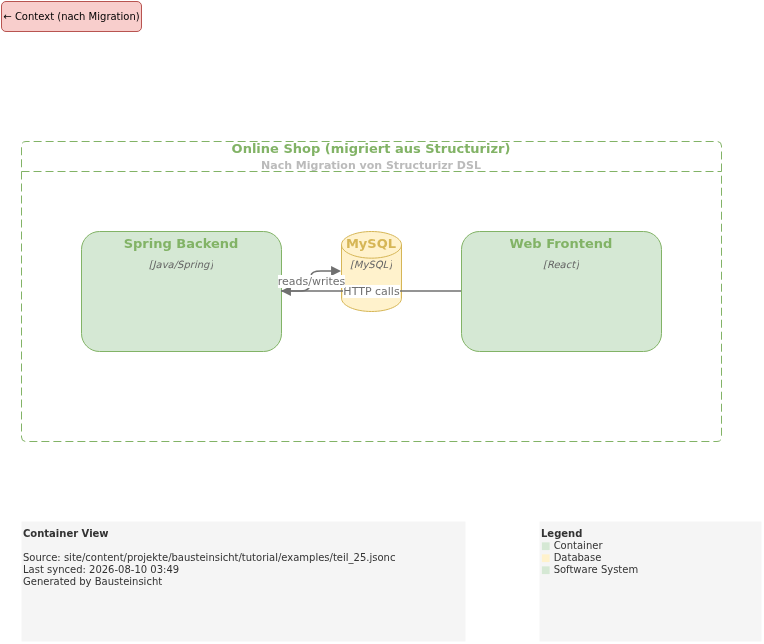
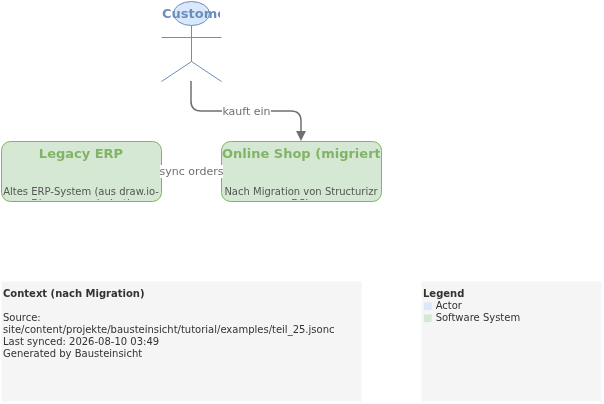
The example for this part (model migrated from Structurizr/draw.io with a legacy ERP connection) is located at teil_25.jsonc.
This is what the result looks like in draw.io (bausteinsicht sync):
The draw.io file for this can be found here: teil_25.drawio
Generated PNG files via bausteinsicht export --image-format png:
Generated PlantUML diagrams via bausteinsicht export-diagram:
Up Next: Team Workflows
A migration is rarely a solo project. The next part covers how multiple people can work on the model simultaneously — merge conflicts in JSONC, ownership conventions, and the review process for architecture changes.
Official documentation: User Manual · Tutorial on doctoolchain.org