This post continues from the eighth part.
bausteinsicht validate and bausteinsicht lint check the model on the command line.
Even better: see errors directly in the editor — while typing, without leaving the terminal.
This is made possible by the Language Server Protocol.
What Is LSP?
The Language Server Protocol (LSP) is an open standard from Microsoft. A language server runs in the background and analyzes source code (or configuration files) — the editor queries it and displays the results:
Red underlines for errors
Autocompletion for known values
Hover information
CodeLens (small info lines above code)
Because LSP is a standard, bausteinsicht-lsp works with any LSP-capable editor: VS Code, Neovim, Emacs, Zed, IntelliJ.
Installing bausteinsicht-lsp
bausteinsicht-lsp is a separate binary — it runs as a background process started by the editor:
# Via Go Install
go install github.com/docToolchain/Bausteinsicht/cmd/bausteinsicht-lsp@latest

# Via release binary (Linux amd64)
curl -Lo bausteinsicht-lsp \
  https://github.com/docToolchain/Bausteinsicht/releases/latest/download/bausteinsicht-lsp_linux_amd64
chmod +x bausteinsicht-lsp && sudo mv bausteinsicht-lsp /usr/local/bin/
VS Code Setup
Option A: VS Code Extension (Recommended)
The official Bausteinsicht VS Code extension installs and configures the LSP automatically:
Open the Extensions panel (
Ctrl+Shift+X)Search for "Bausteinsicht"
Install the extension
The extension activates automatically as soon as a *.jsonc file containing architecture in its filename is opened.
Option B: Manual Configuration
For other editors or manual control: register bausteinsicht-lsp via the editor’s LSP configuration.
VS Code settings.json:
{
  "languageServerExample.maxNumberOfProblems": 100,
  "[jsonc]": {
    "editor.defaultFormatter": "esbenp.prettier-vscode"
  }
}
Or via vscode-languageclient in an extension:
{
  "command": "bausteinsicht-lsp",
  "args": ["--stdio"],
  "filenamePattern": "*architecture*.jsonc"
}
What the LSP Provides
Inline Validation
The LSP calls bausteinsicht validate --format json in the background and shows errors directly as red underlines in the editor:
"frontend": {
    "kind": "container",
    "children": { ... }  ← ⚠ Error: kind 'container' has container:false in specification
}
Error messages appear on hover over the marked position — without opening a terminal.
Severity levels:
* Error (red): structural errors that block validate
* Warning (yellow): warnings from lint (constraint violations)
* Info (blue): hints (e.g. element not visible in any view)
* Hint (gray): style recommendations
CodeLens: Inline Metadata
Above each element definition, the LSP shows a CodeLens line with metadata:
"api": {
    "kind": "container",
    "title": "REST API",
    "status": "deployed"
}
The CodeLens shows:
* Element type (kind)
* Lifecycle status (status, when set)
* Number of views in which the element appears
Clicking on the CodeLens opens the draw.io diagram at the corresponding position.
Validation on Save
Every time architecture.jsonc is saved, validate and lint run automatically in the background.
Violations appear immediately in VS Code’s Problems panel — no manual bausteinsicht lint needed.
JSON Schema: The Lightweight Alternative
Without LSP setup, autocompletion also works via JSON Schema. VS Code supports this natively.
Set the $schema entry in architecture.jsonc (→ Part 3):
{
  "$schema": "https://raw.githubusercontent.com/docToolchain/Bausteinsicht/main/schemas/bausteinsicht.schema.json",
  ...
}
This immediately provides:
Autocompletion for all known fields (
kind,title,technology, etc.)Type validation (e.g.
containermust be a Boolean)Hover documentation for all fields
JSON Schema only checks the structure, not semantic consistency (e.g. whether a kind value is defined in specification.elements). That is the responsibility of the LSP. |
Local Schema (Without Internet Connection)
# Download schema
curl -Lo schemas/bausteinsicht.schema.json \
  https://raw.githubusercontent.com/docToolchain/Bausteinsicht/main/schemas/bausteinsicht.schema.json

# Reference in architecture.jsonc
# "$schema": "./schemas/bausteinsicht.schema.json"
LSP vs. JSON Schema: When to Use Which?
| Feature | JSON Schema | bausteinsicht-lsp |
|---|---|---|
Field documentation on hover | ✅ | ✅ |
Autocompletion (known fields) | ✅ | ✅ |
Type validation | ✅ | ✅ |
Constraint checking (lint) | ✗ | ✅ |
Model consistency (validate) | ✗ | ✅ |
CodeLens (kind/status/views) | ✗ | ✅ |
Setup effort | Minimal (1 line) | Low (install binary) |
Works offline | ✗ (remote URL) / ✅ (local) | ✅ |
JSON Schema is sufficient for most projects.
bausteinsicht-lsp is worthwhile when you work regularly with the model and want immediate constraint feedback in the editor.
Example Model
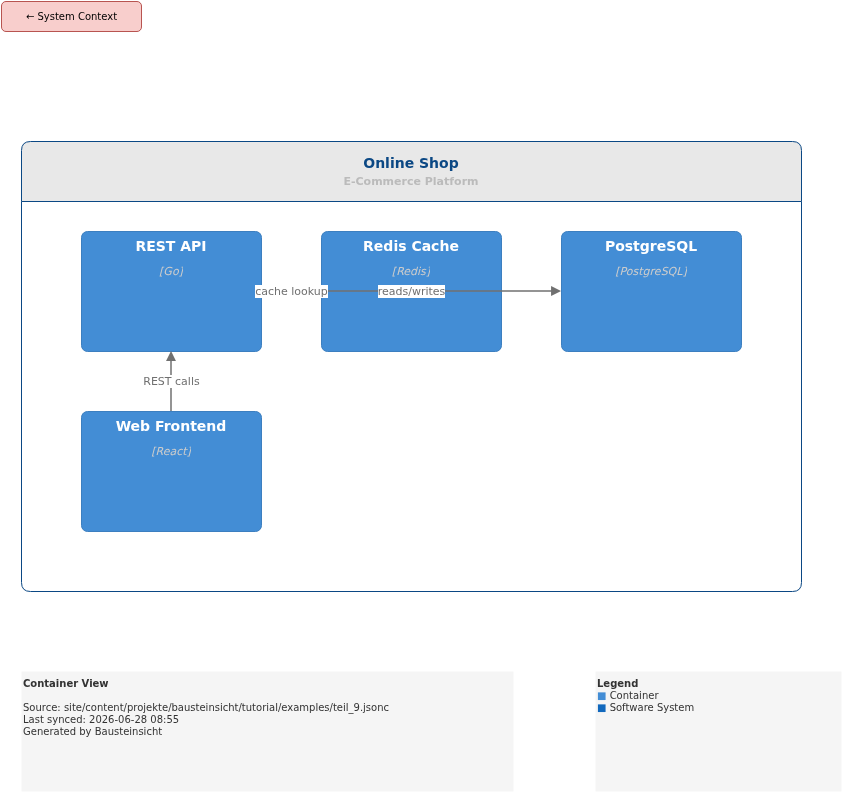
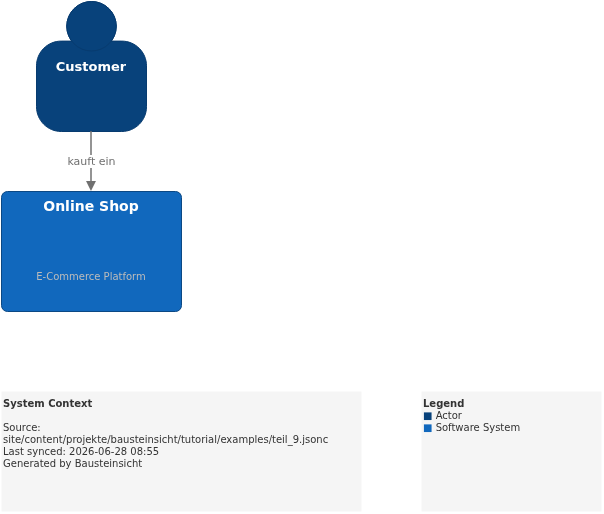
The example for this part (elements with status field for LSP CodeLens) is located at teil_9.jsonc.
This is what the result looks like in draw.io (bausteinsicht sync):
You can find the draw.io file here: teil_9.drawio
Generated PNG files via bausteinsicht export --image-format png:
Generated PlantUML diagrams via bausteinsicht export-diagram:
What Comes Next
Part 10: Graph Analysis — Uncover cycles and dependencies
Part 11: ADR Integration — Link Architecture Decision Records to the model
Official documentation: User Manual · Tutorial on doctoolchain.org