This post continues from the third part. The unique selling point of Bausteinsicht is bidirectional synchronization: changes in the JSONC model end up in the draw.io diagram — and changes in the diagram end up in the model. This post explains how that works.
The Problem: Two Representations, One Truth
Architecture diagrams have a fundamental problem: either the code is the source of truth and the diagram is generated automatically (good for consistency, bad for visual control), or the diagram is the source and is maintained manually (good for appearance, bad for consistency).
Bausteinsicht solves this through genuine bidirectionality: model and diagram are equal. The sync algorithm detects which side has changed, and transfers the change to the other side.
The .bausteinsicht-sync State File
The foundation of the sync algorithm is the .bausteinsicht-sync file.
It contains a snapshot of the state after the last successful sync:
{
  "timestamp": "2025-06-11T09:00:00Z",
  "model_hash": "sha256:a1b2c3...",
  "drawio_hash": "sha256:d4e5f6...",
  "elements": {
    "onlineshop.frontend": {
      "title": "Web Frontend",
      "technology": "React",
      "kind": "container"
    }
  },
  "relationships": [
    { "from": "customer", "to": "onlineshop", "label": "uses", "kind": "uses" }
  ],
  "rendered_elements": {
    "onlineshop.frontend": true,
    "onlineshop.api": true
  }
}
This state file is the three-way comparison: sync compares the current state of both the model and the diagram against the last known state — and thereby determines on which side something has changed.
The .bausteinsicht-sync file belongs in the git repository alongside architecture.jsonc. It is the only way Bausteinsicht can distinguish conflicts from legitimate changes. |
The Sync Cycle
bausteinsicht sync runs every execution as an atomic five-step cycle:
1. DetectChanges    → ChangeSet (what changed on which side?)
2. ResolveConflicts → conflicting fields resolved (model wins)
3. ApplyForward     → model changes → transferred to draw.io
4. ApplyReverse     → draw.io changes → transferred to model
5. SaveState        → .bausteinsicht-sync updated
The entire cycle is a pure function without side effects — all I/O happens before and after. This makes the algorithm testable and deterministic.
Forward Sync: Model → draw.io
The forward sync carries all model changes into the diagram.
New Elements
New elements appear with a red dashed border as a visual marker:
strokeColor=#FF0000;dashed=1;The red border signals: "This element was just added — position it."
Once the element has been manually moved and sync runs again, the red border disappears.
Positions Are Preserved
Bausteinsicht remembers the positions set in the diagram. On every forward sync, only title, description, technology, and styles are updated — not the position. Manually arranged layouts are preserved.
Tag Styles Are Applied
If an element has tags that are defined in specification.tags with style attributes, those styles are applied to the draw.io element:
"specification": {
  "tags": [
    { "id": "external", "style": { "fillColor": "#f5f5f5", "fontColor": "#666666" } }
  ]
},
"model": {
  "paymentprovider": {
    "kind": "system",
    "title": "Payment Provider",
    "tags": ["external"]
  }
}
Status Badges
Elements with a status field automatically receive a colored badge in the diagram:
| Status | Color | Meaning |
|---|---|---|
| Yellow | Planned |
| Blue | In design |
| Orange | Under development |
| Green | In production |
| Red | Outdated |
| Gray | Decommissioned |
Reverse Sync: draw.io → Model
The reverse sync transfers changes from the diagram back into the JSONC model.
What Gets Written Back?
The following changes in the diagram end up in the model:
| draw.io Action | Effect in the Model |
|---|---|
Rename an element (double-click → new title) |
|
Change the technology label |
|
Drag a new element into a container box | New element is added as |
Delete an element from the diagram | Element is removed from the model |
Draw a connection between two elements | New relationship is created in the |
Reverse a connection arrow |
|
Delete a connection | Relationship is removed from the model |
Relationship Lifting
An important concept: Relationship Lifting. When a connection is drawn in draw.io between two elements that live at different levels in the model hierarchy, Bausteinsicht automatically "lifts" the relationship to the appropriate hierarchy level.
Example: The diagram shows shop.frontend and shop.api (both container children of shop).
You draw a connection from frontend to api — exactly this relationship lands in the model:
"relationships": [
  { "from": "shop.frontend", "to": "shop.api", "label": "API calls" }
]
If instead you draw a connection from customer (top-level actor) to shop.api (a nested container), it is correctly created as customer → shop.api — without manually correcting the IDs.
Conflict Detection and Resolution
A conflict occurs when the same field has been changed on both sides simultaneously — that is, since the last sync.
When Does This Happen?
Typical scenario: you change title in the JSONC model and someone else simultaneously changes the same title directly in the draw.io diagram — without synchronizing first.
Resolution: Model Wins
Bausteinsicht uses a simple and predictable strategy: the model always wins.
Conflict detected for element "shop.frontend":
  Field: title
  Model value:   "Web App"
  draw.io value: "Frontend Application"
  Last sync:     "Web Frontend"
  → Keeping model value. Edit draw.io manually if needed.
The conflict is reported as a warning — the change in the model is applied, the draw.io change is discarded.
This strategy is intentionally simple. The JSONC model is the primary source of truth — draw.io is a view on it.
Practical Example: Complete Sync Cycle
Starting Situation
architecture.jsonc and architecture.drawio are in sync (last sync 10 minutes ago).
Step 1: Change the Model
Add a new container in the JSONC:
"model": {
  "shop": {
    "kind": "system", "title": "Online Shop",
    "children": {
      "frontend": { "kind": "container", "title": "Web Frontend" },
      "api":      { "kind": "container", "title": "REST API" },
      "cache":    { "kind": "container", "title": "Redis Cache", "technology": "Redis" }
    }
  }
}
Step 2: Change the API Title in the Diagram
Open architecture.drawio, double-click on "REST API", rename it to "REST API v2", save.
Step 3: Run Sync
bausteinsicht syncOutput:
Forward (model → draw.io):  1 added, 0 updated, 0 deleted
Reverse (draw.io → model):  0 added, 1 updated, 0 deleted
Result:
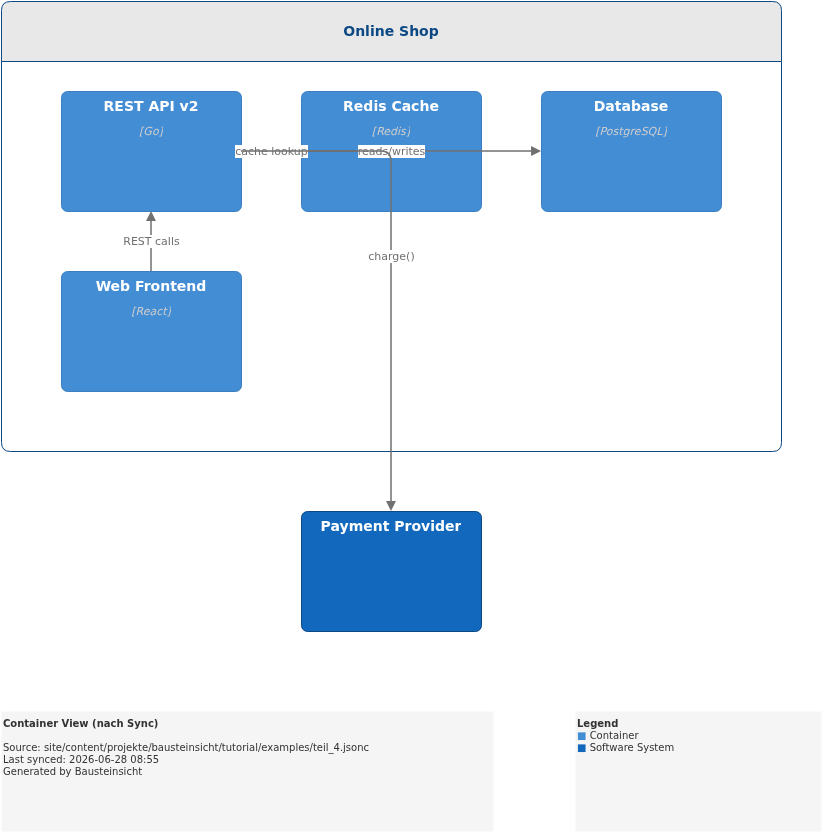
draw.io: Redis Cache appears with a red dashed border in the Container View
architecture.jsonc:"title": "REST API v2"for the API container
Both sides were updated in a single sync run.
Watch Mode: Continuous Synchronization
bausteinsicht watch monitors both files with a filesystem watcher and triggers the sync cycle automatically on every change.
The result: you can edit the model in the editor and adjust the diagram in draw.io at the same time — the watch process keeps everything in sync in real time.
In watch mode, a git commit after each completed change step is recommended. The .bausteinsicht-sync state shows in git diff exactly which elements were changed — a useful log. |
Example Model
The example for this part is stored as a runnable JSONC file at teil_4.jsonc and shows the state after a complete sync cycle (including reverse sync: "REST API v2").
This is what the result looks like in draw.io (bausteinsicht sync):
The draw.io file for this can be found here: teil_4.drawio
Generated PNG files via bausteinsicht export --image-format png:
Generated PlantUML diagrams via bausteinsicht export-diagram:
What Comes Next
Part 5: Multi-View — multiple diagram perspectives from one model
Part 8: Validation & Linting — enforcing architecture rules with
bausteinsicht lint
Official documentation: User Manual · Tutorial on doctoolchain.org