This post continues from the thirteenth part.
When new elements are added to the model, they often end up stacked on top of each other or in unfavorable positions in draw.io.
bausteinsicht layout calculates a hierarchical layout and writes the positions directly into the diagram.
bausteinsicht layout
bausteinsicht layoutBausteinsicht automatically detects the model (AutoDetect) and the associated architecture.drawio in the same directory.
Output:
Layout applied (hierarchical): architecture.drawio
The diagram is now arranged hierarchically — elements with many outgoing connections appear at the top, leaf elements at the bottom.
Choosing a Direction
# Top-to-Bottom (default)
bausteinsicht layout --rank-dir TB

# Left-to-Right (for wide diagrams)
bausteinsicht layout --rank-dir LR
LR is particularly well-suited for systems with many parallel services at the same level.
Pinning: Fixing Specific Elements
Not all elements should be moved automatically. External systems, important core services, or manually positioned overview elements can be fixed with a metadata flag:
In architecture.jsonc:
{
  "model": {
    "external-payment-provider": {
      "kind": "external",
      "title": "Payment Provider",
      "metadata": {
        "bausteinsicht-pinned": "true"
      }
    }
  }
}
When running the layout command, this element stays in its position — all others are rearranged:
# Default: pinned elements are not moved
bausteinsicht layout --preserve-pinned true

# Rearrange all elements (ignore pinning)
bausteinsicht layout --preserve-pinned false
Typical Workflow
After adding new elements (e.g. via bausteinsicht add element or manual editing):
# 1. Add new element
bausteinsicht add element --id newservice --kind service --title "New Service"

# 2. Sync: draw.io knows the new element
bausteinsicht sync

# 3. Recalculate layout
bausteinsicht layout

# 4. Open draw.io — neatly arranged
layout only changes positions in architecture.drawio, not the model in architecture.jsonc. Position changes are not overwritten by sync — sync updates elements and styles, but not positions. |
Limitations
Currently only the
hierarchicalalgorithm is supported (Sugiyama-based)Overlaps possible with very dense diagrams — manual cleanup may be needed
Scope boxes (→ Part 5) are treated as containers and influence the layout
Example Model
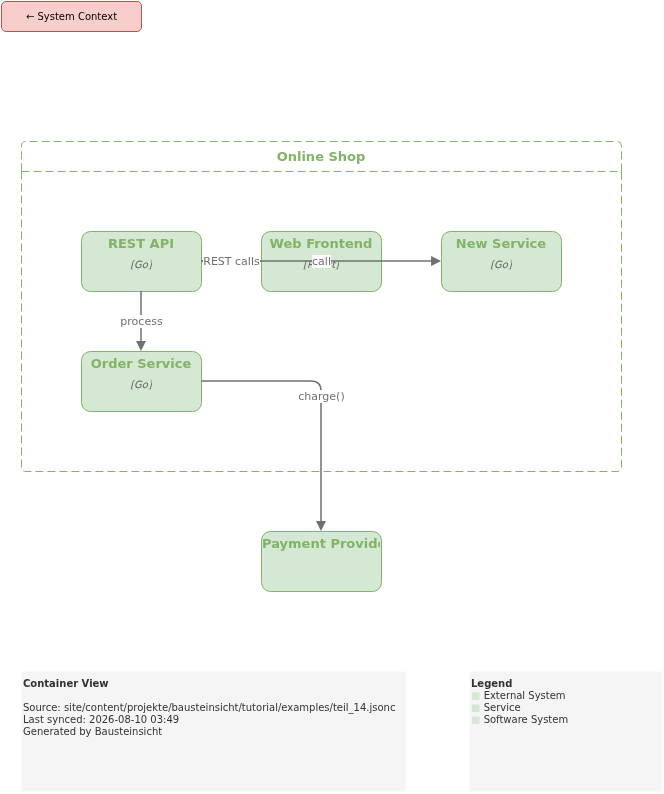
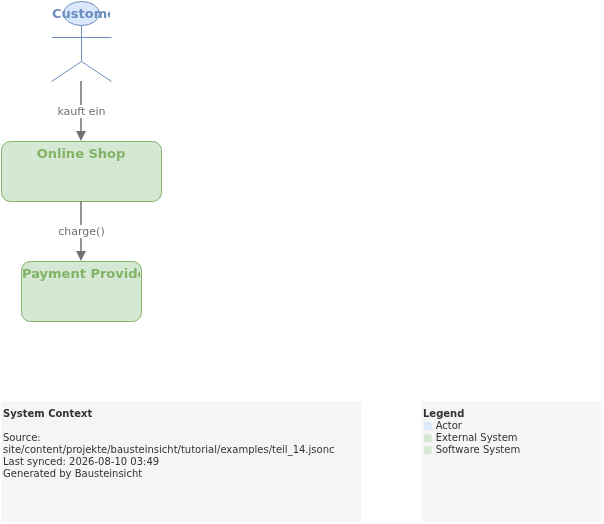
The example for this part (model with a pinned external system) is located at teil_14.jsonc.
This is what the result looks like in draw.io (bausteinsicht sync):
You can find the draw.io file here: teil_14.drawio
Generated PNG files via bausteinsicht export --image-format png:
Generated PlantUML diagrams via bausteinsicht export-diagram:
What Comes Next
Part 15: Templates — Generate custom visual styles for all element types as a draw.io template
Part 16: Workspace — Combine multiple architecture models in one workspace
Official documentation: User Manual · Tutorial on doctoolchain.org